CGRA is updating our Property Management System to improve the accuracy and management of resident information, memberships, access, registrations, and other services. Starting October 19, property owners will receive information about accessing their accounts.
What do you need to do?
Please ensure your contact and household information is current. Tenants and landlords should also ensure CGRA has their current lease agreement(s) on file. If there are previous receipts you require from your current account, please download them now, or access CGRA to receive emailed copies.
Questions or noticing something that doesn’t look right on your current account?
Please contact the CGRA team—we’re here to help: adminsupport@chappellegardensra.ca
GUIDES FOR PROPERTY MANAGEMENT SYSTEM:
How to Log Into your Account
How to Log Into the Chappelle Gardens Portal
Learn the simple steps to access your Chappelle Gardens account by navigating to the member sign-in page. This guide provides quick instructions to help you securely log in and manage your membership information.

2. Enter your address in the Email field.

3. Click the “Password” field, and enter your password.

4. Click “Login”

Navigating Your Account
Navigating your Account
Learn how to navigate your account,see member information, and find invoices.
Account Overview
1. Once logged in, you will see your home page.
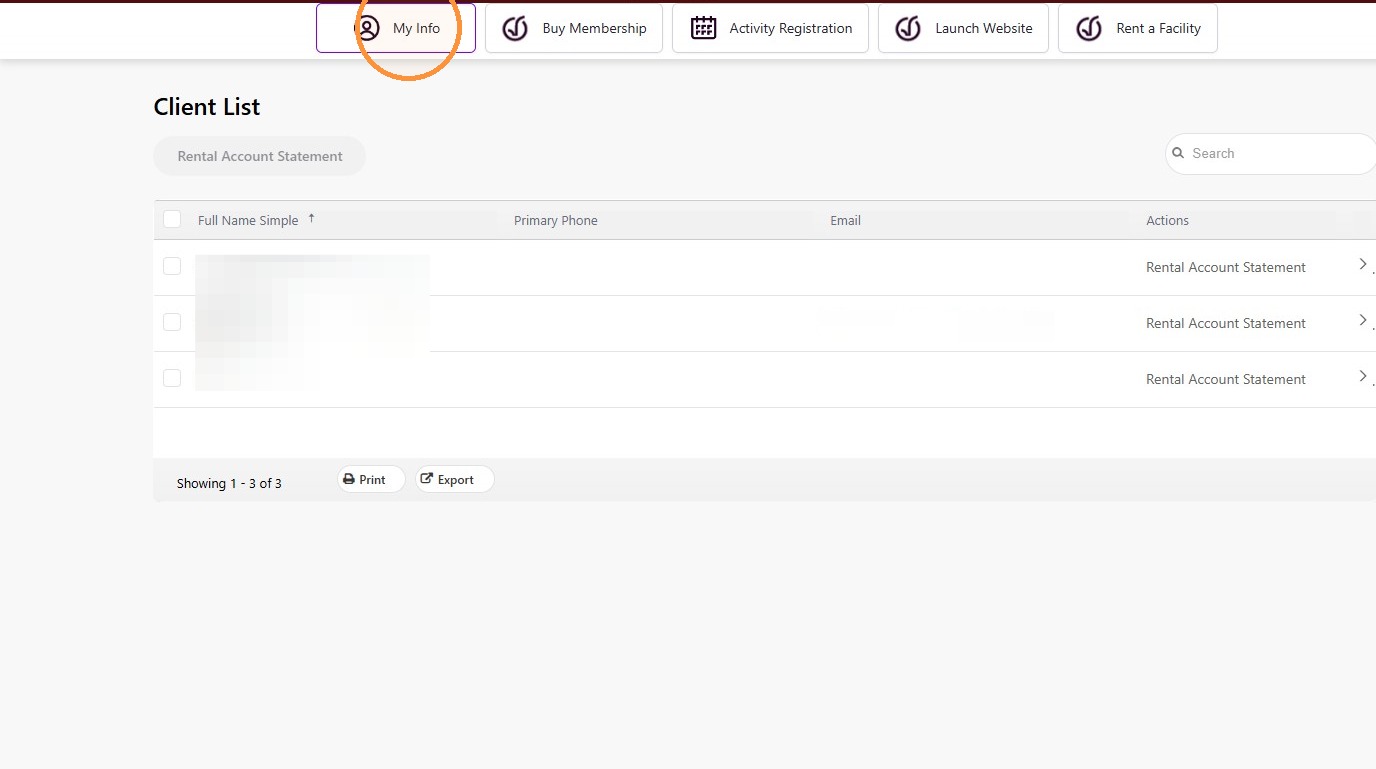
2. Click “My Info”
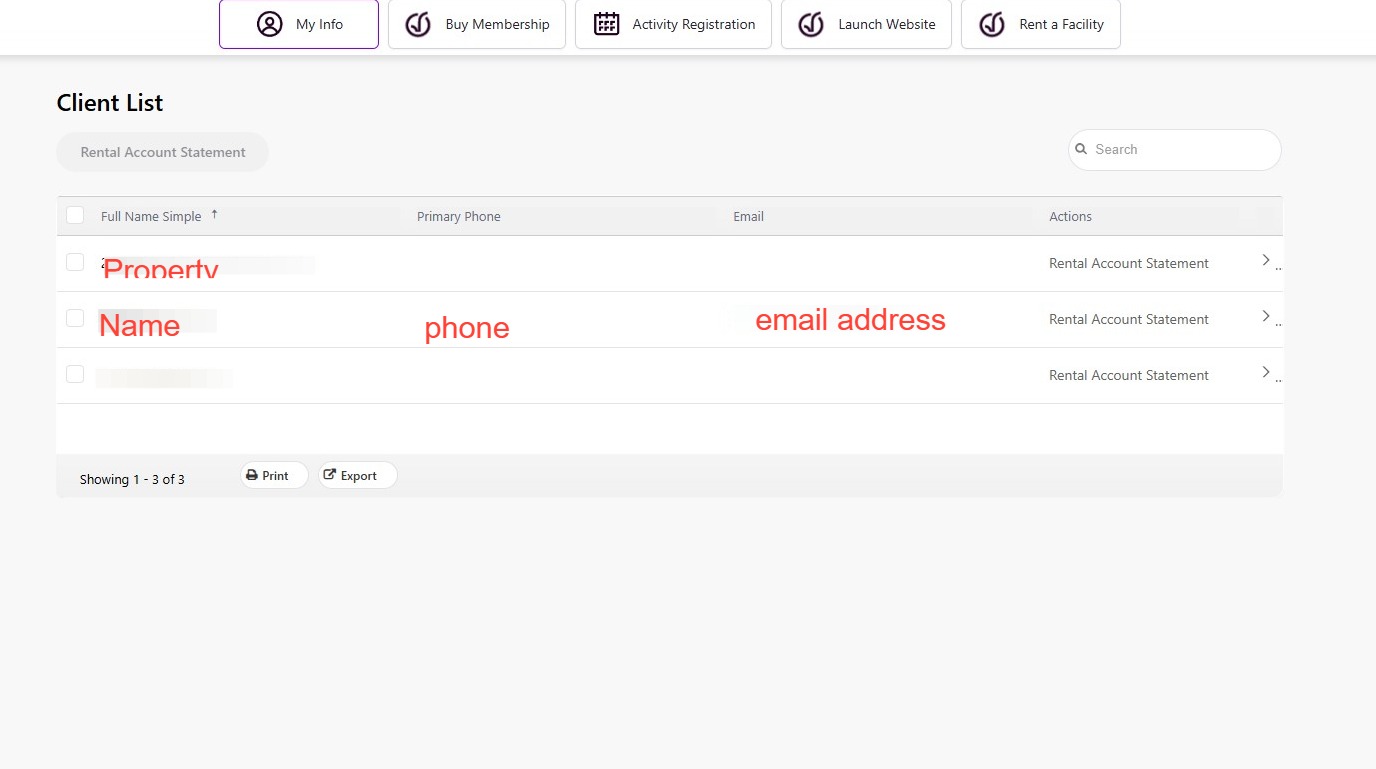
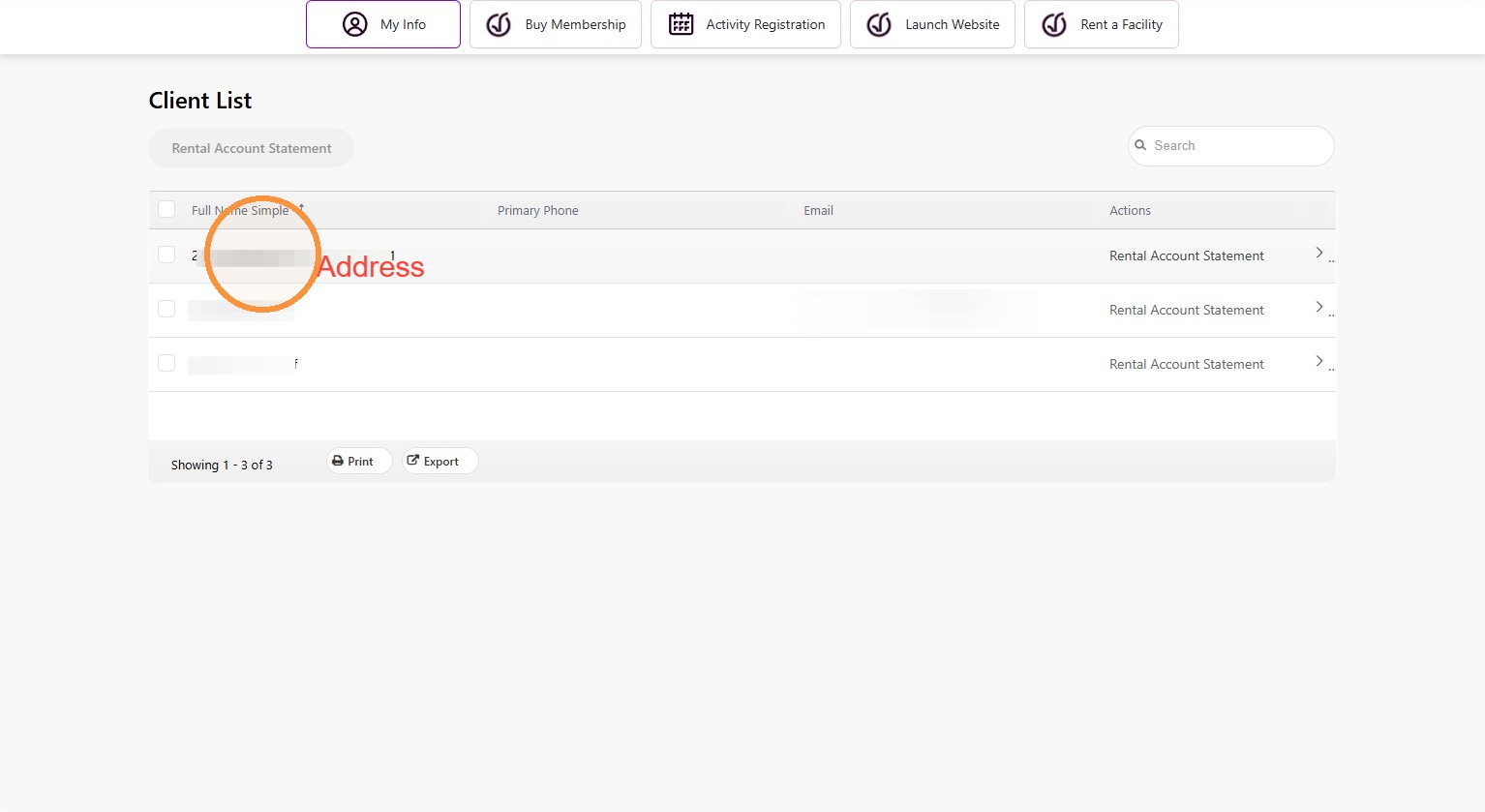
3. The Client List shows details of your hoursehold information, and includes your property address. To see more for a member in your household, click on the name
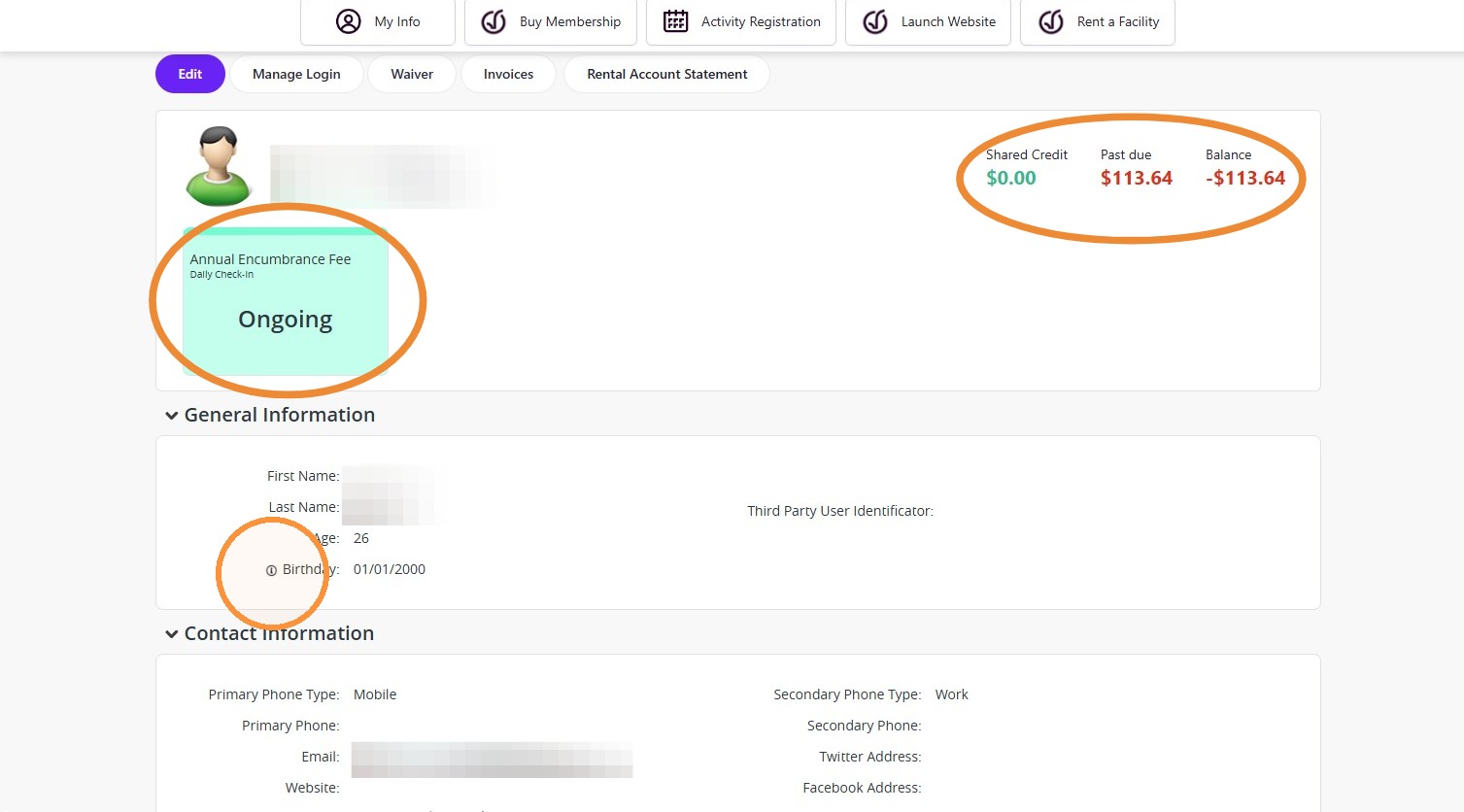
4. Under your account, you will see your membership tile. If your account is in goodstanding, and you are a property member, your membership tile will show as Green.
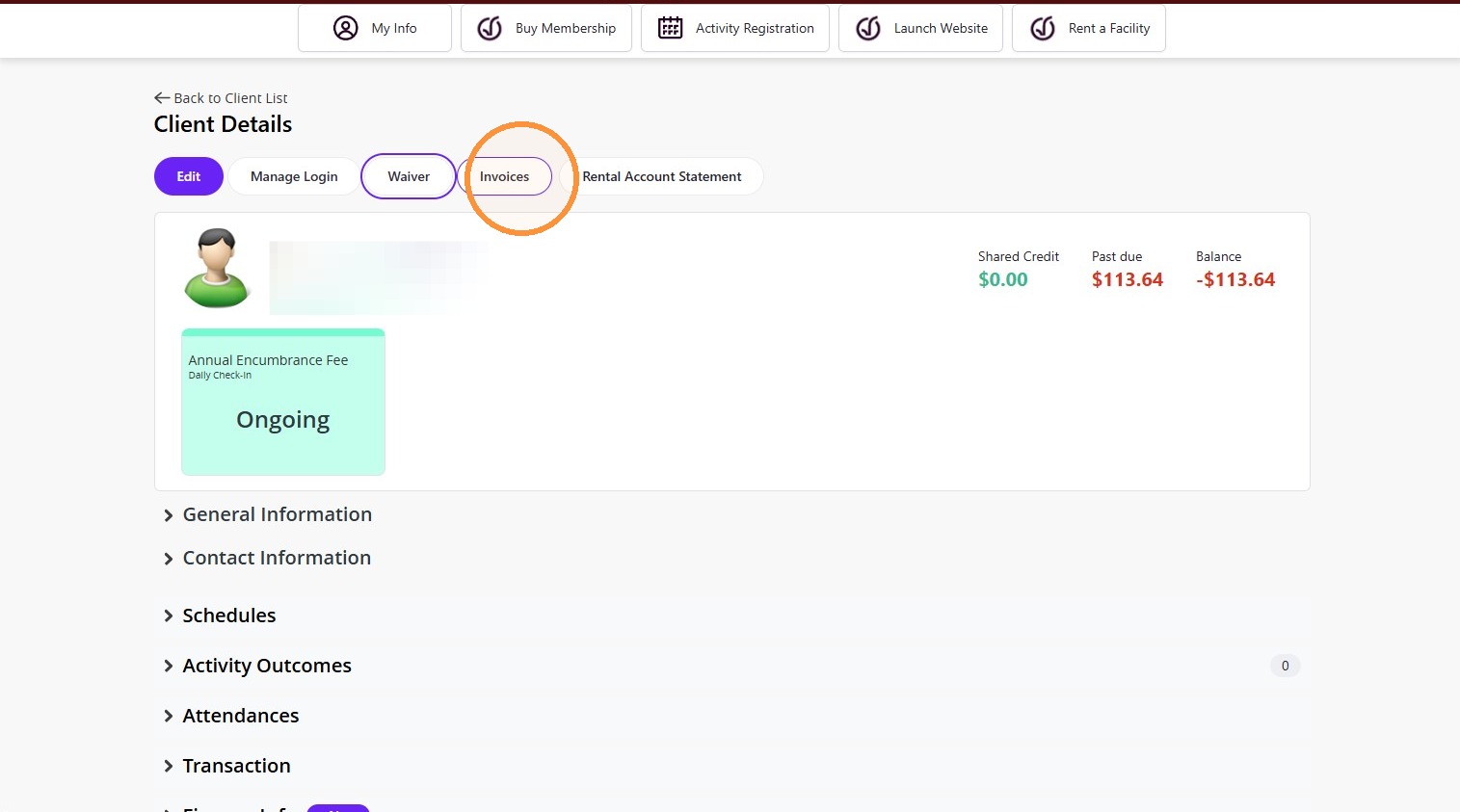
Shared credits, amounts past due, and Balance owing will all show in the top right corner.
Under General Information, adults will show a date of birth of January 1, 2000
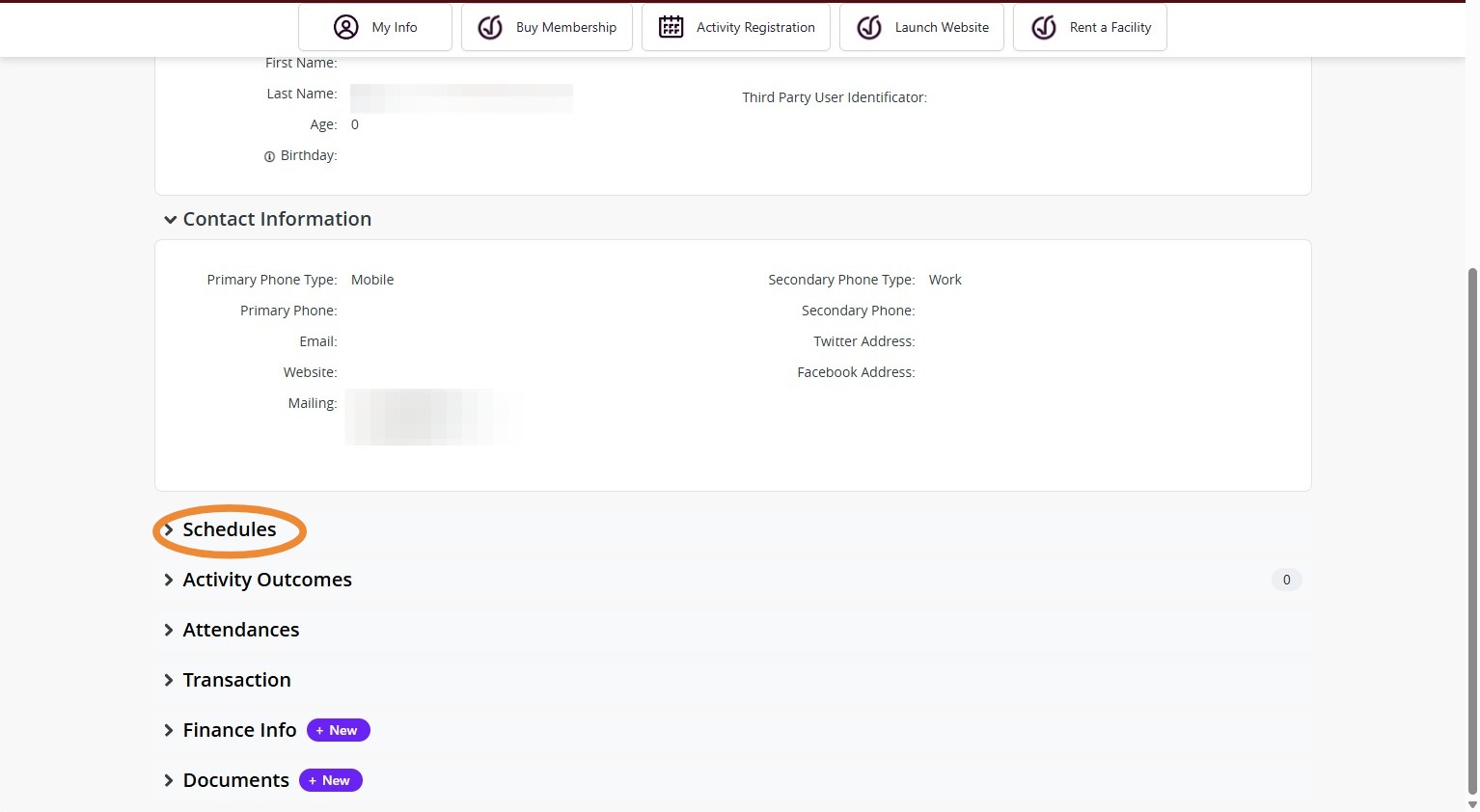
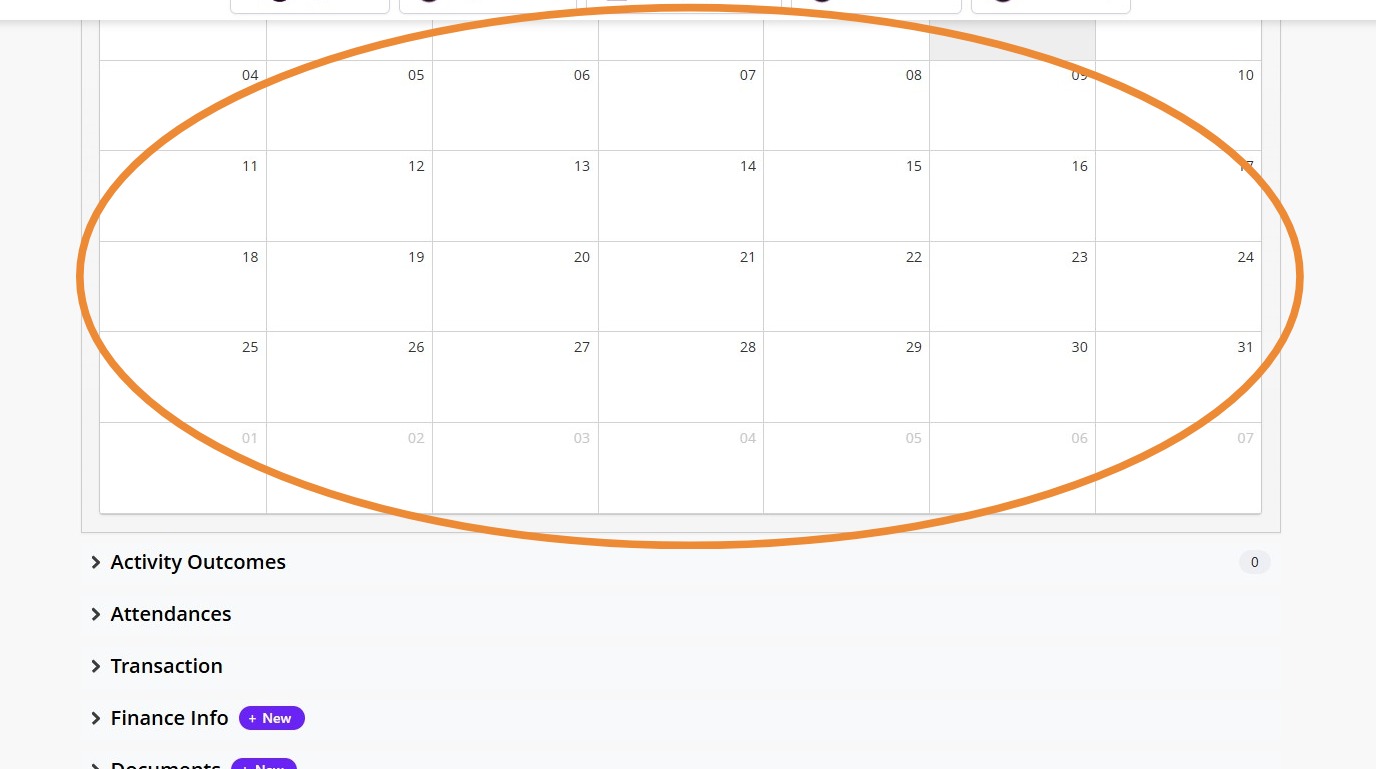
5. Schedules will show any upcoming programs, or facility bookings you, or your household are registed for.
6.
7. Attendances will show when you have checked into a program, or utilized the facility.
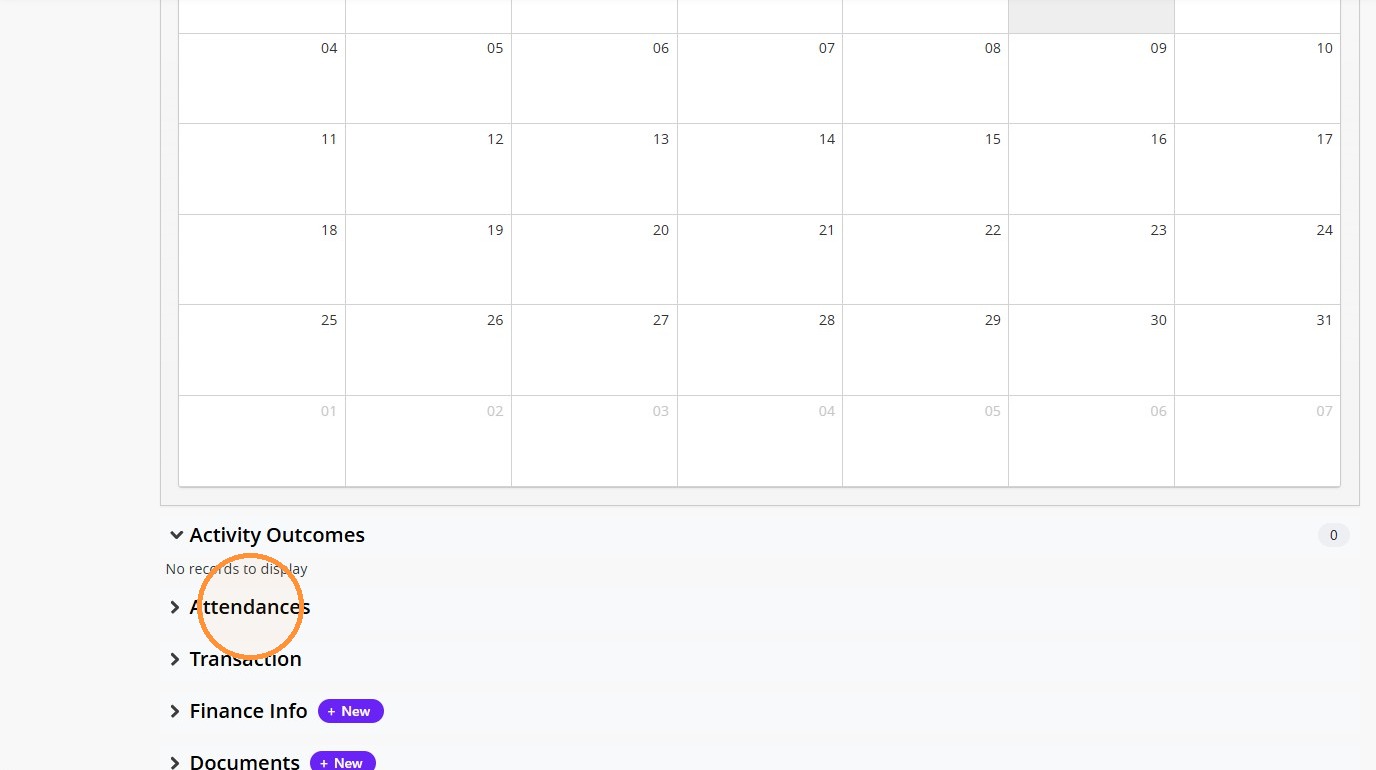
8. Transaction will show any preveious transactions within the system for your account.
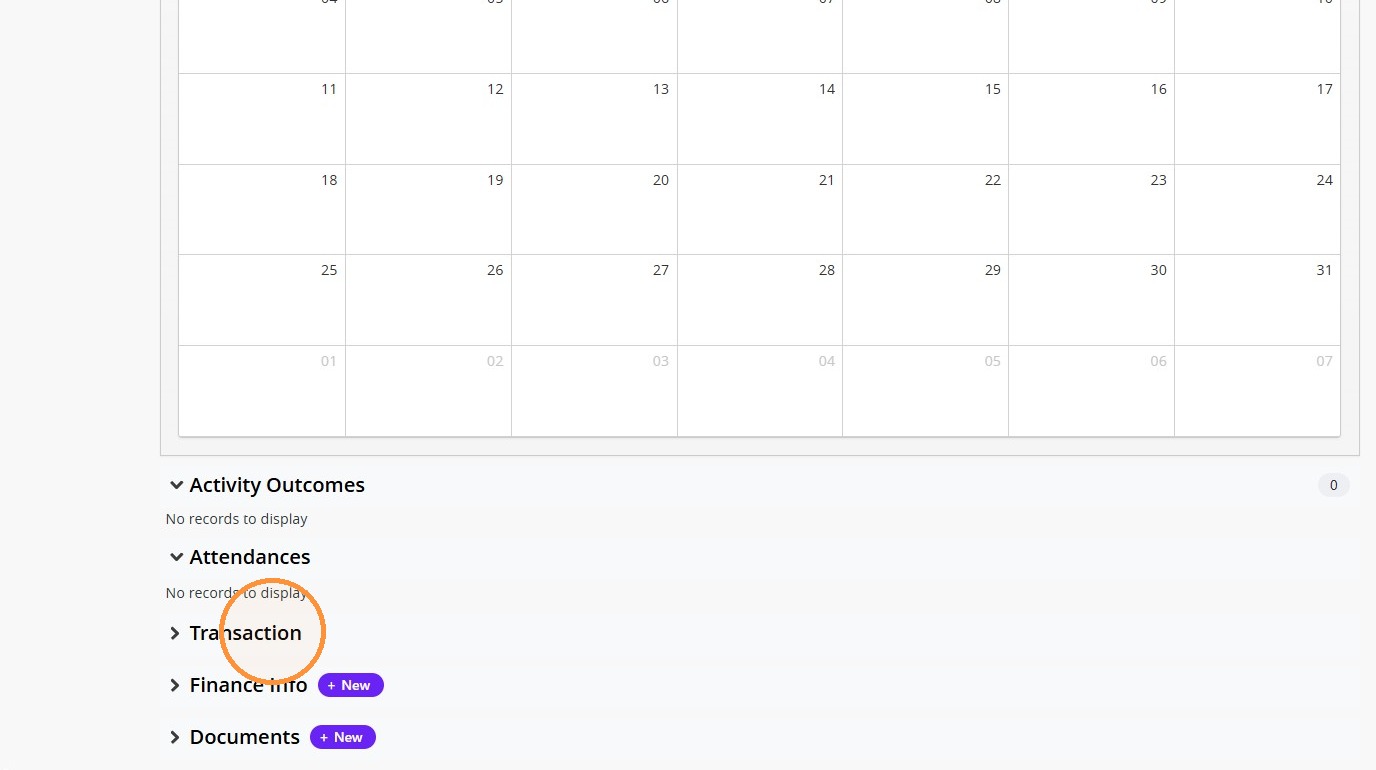
9. Finance Info will allow you to update a credit card on file.
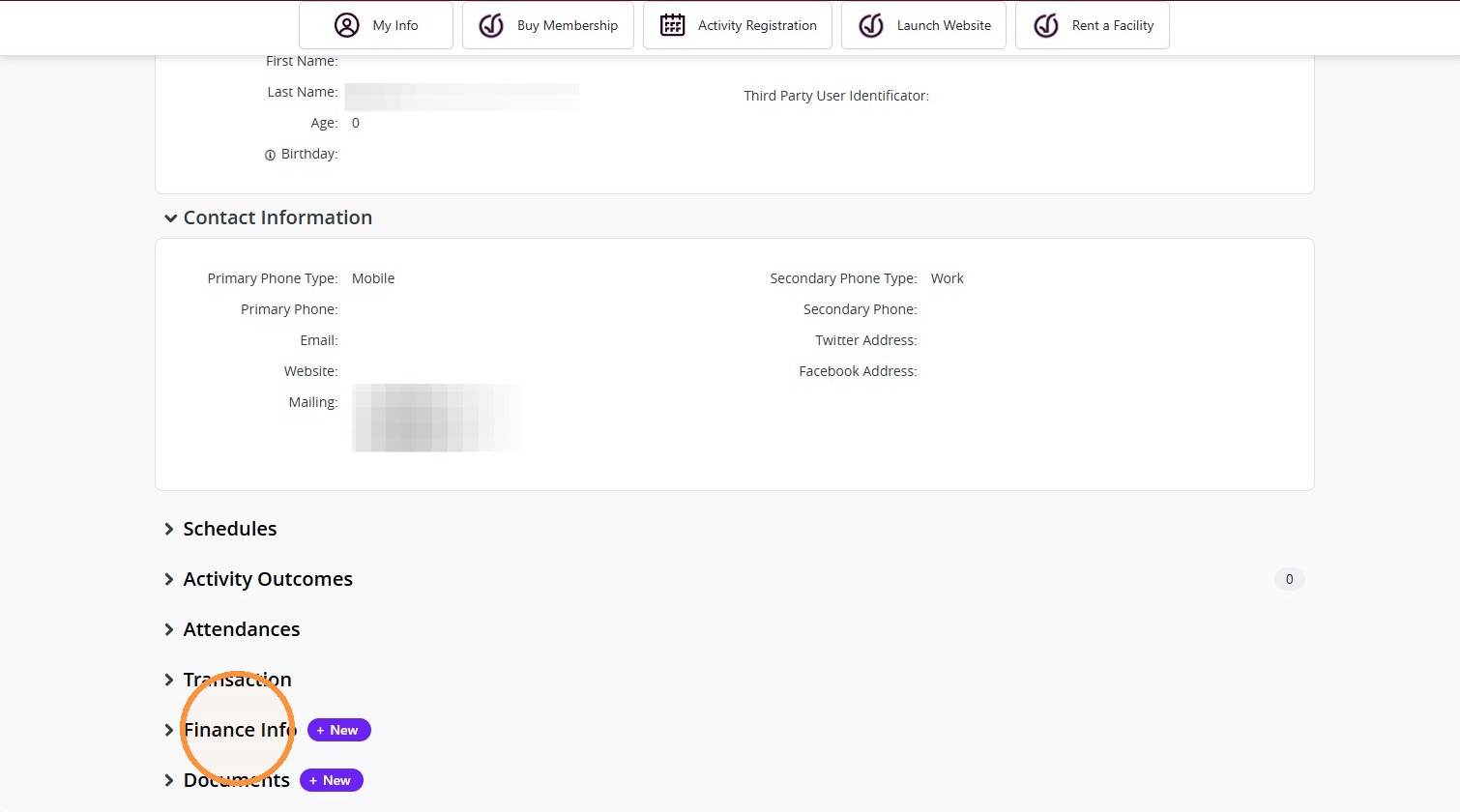
10. Documents will have a record of any document that you may need to sign or have previously signed.
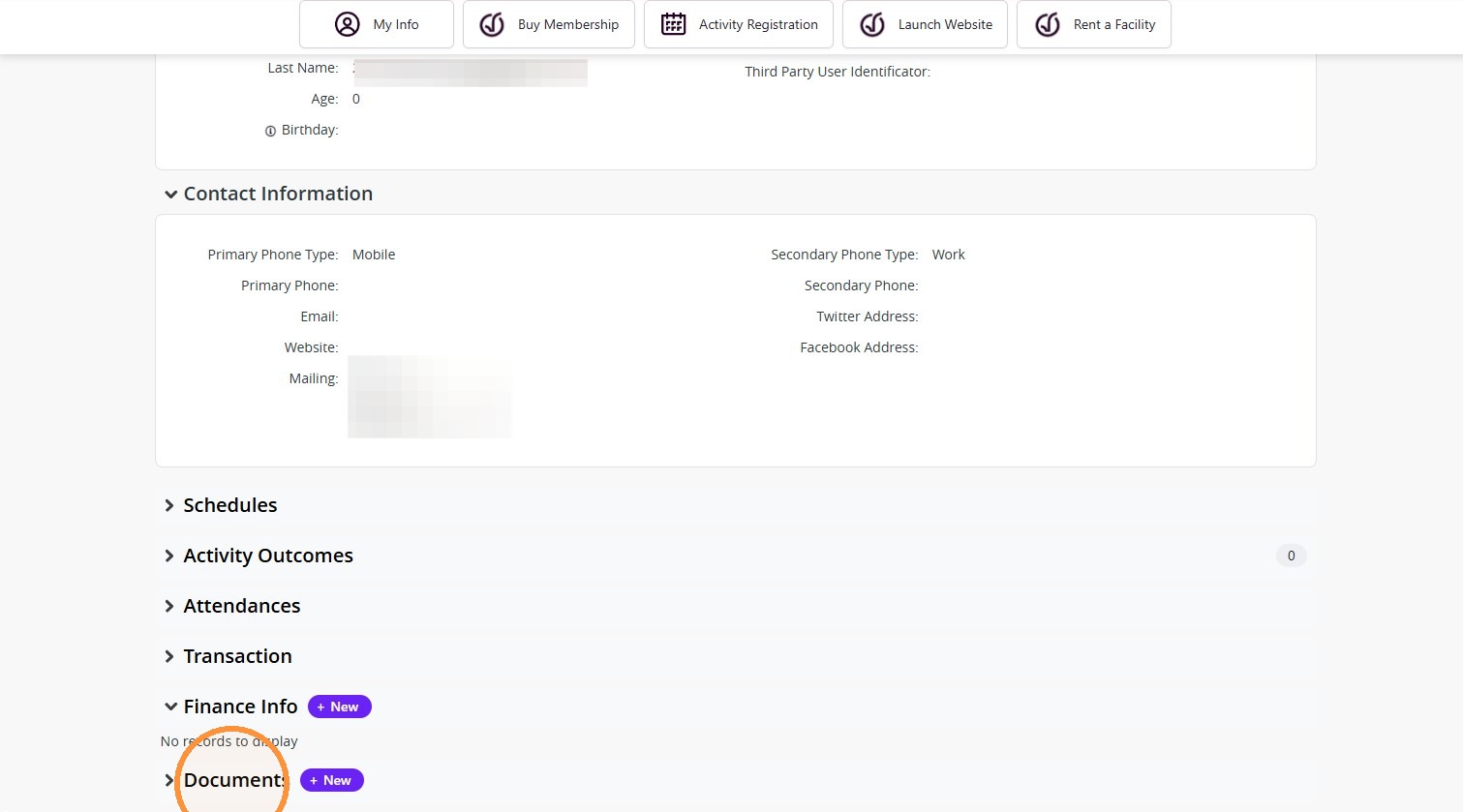
Finding and Viewing Invoices
11. Click invoices to see your account’s invoices.
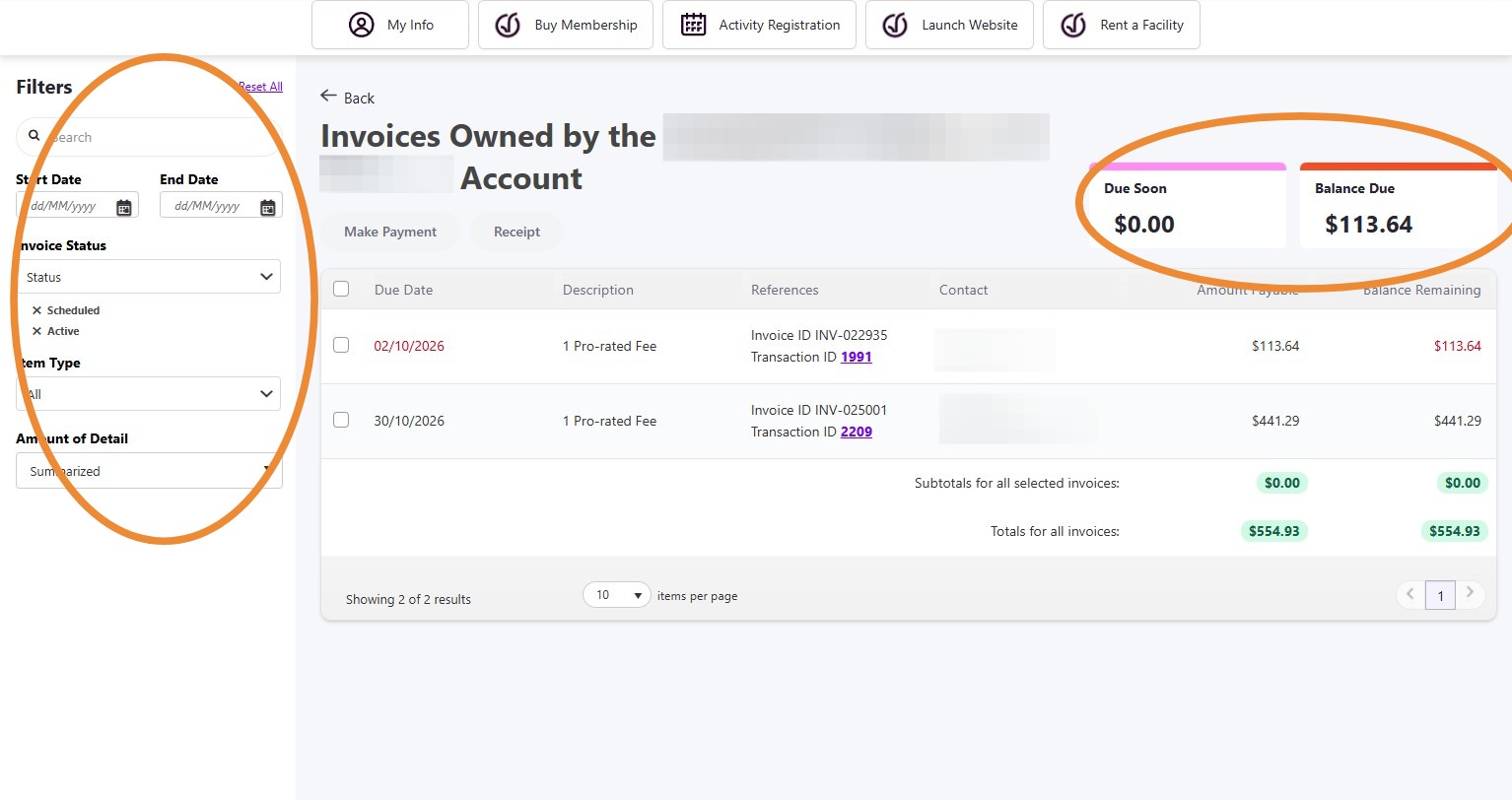
12. The filter on the left will allow you to search based on invoice status. You will be able to find previous invoices, and current utilizing this tool.
Invoices will show in the main section of the page, and due soon, and overdue balances will show in the top right.
How to Register for Activities and Programs
How To Register Activities and Programs
Follow this guide to easily navigate the activity registration portal and sign up for activities and programs at CGRA. Learn how to search for available courses and complete the registration process.
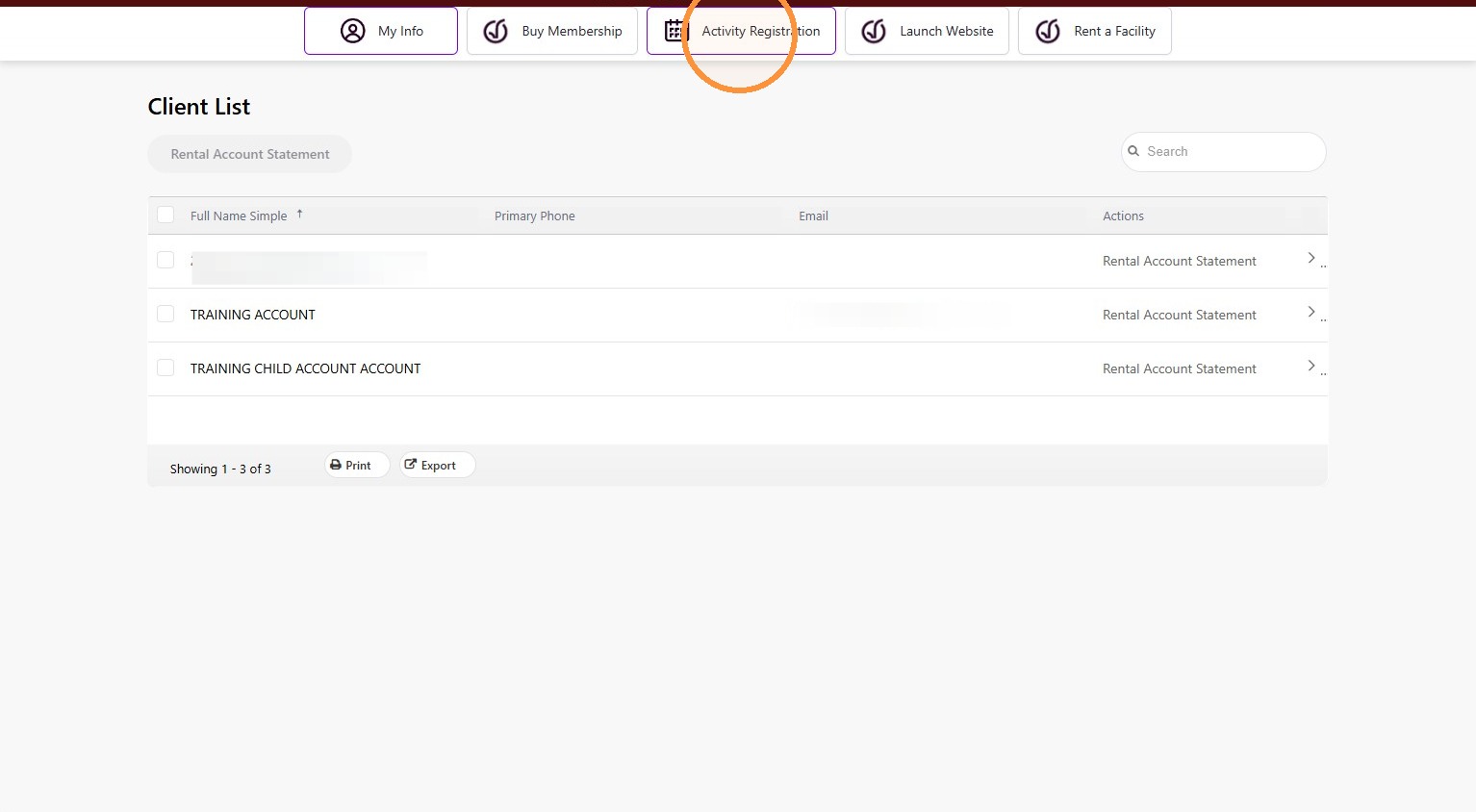
1. When logged into your account, click on activity registration.
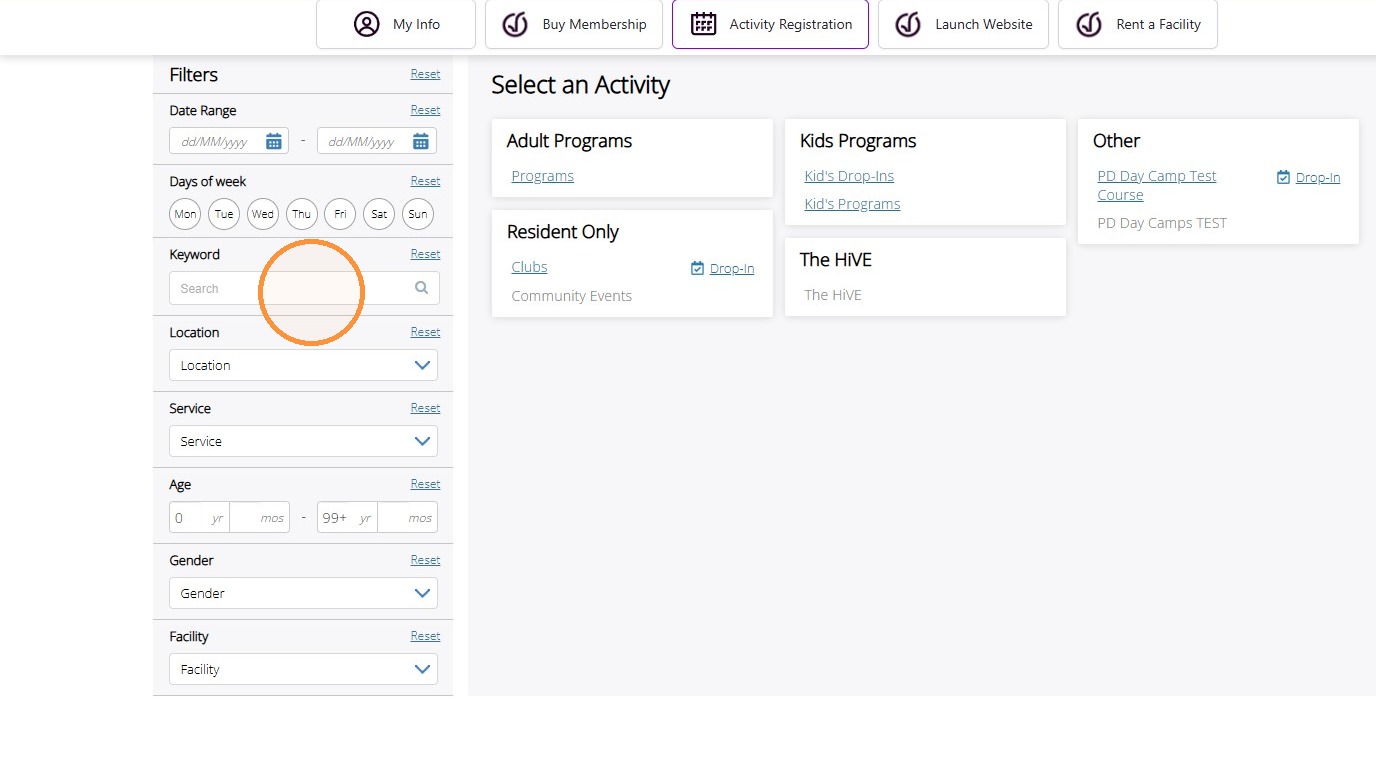
2. On the left – hand side, use the key word search, or other filter tools to find the program you are looking for. Hit enter to search.
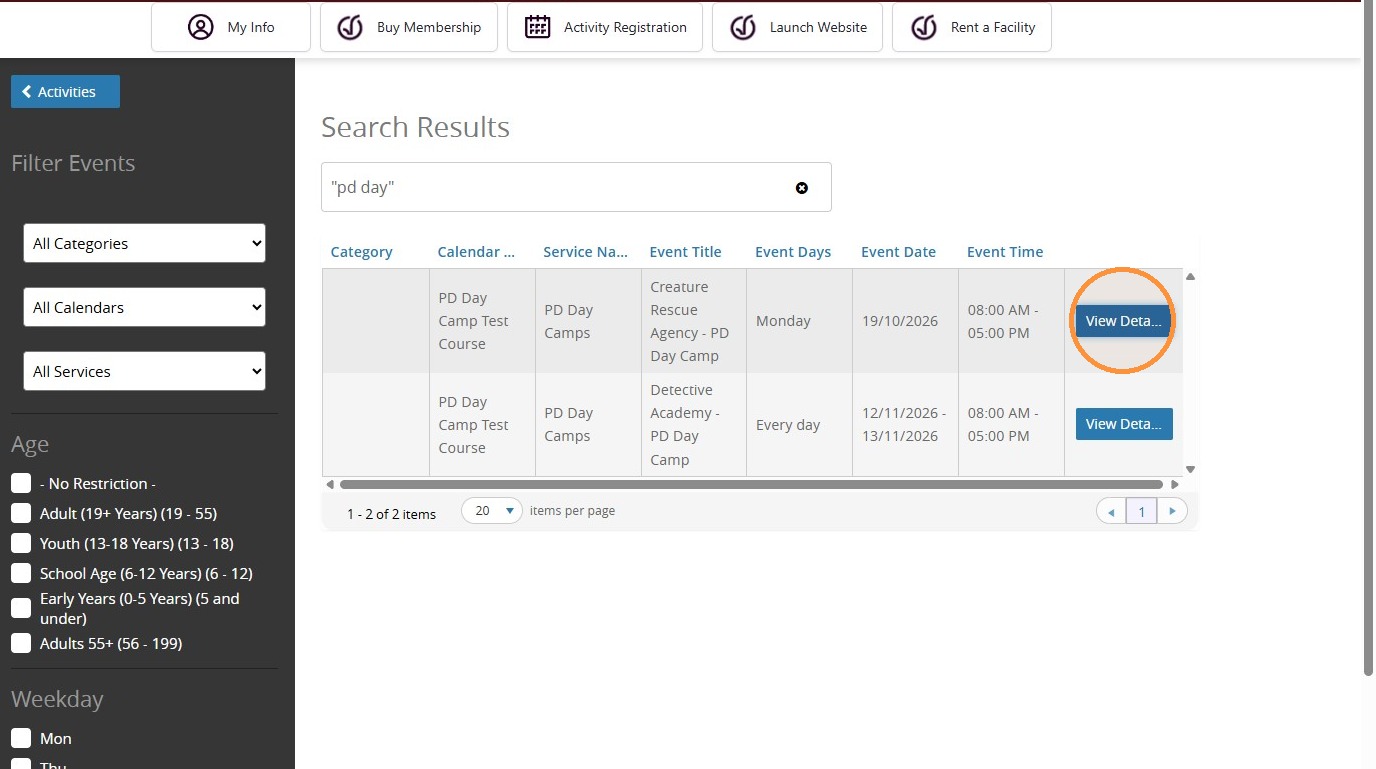
3. Identify the program or activity you are wanting to register in. Click on view details
4. Details regarding cost, date, program details, and times will be available for you to view.
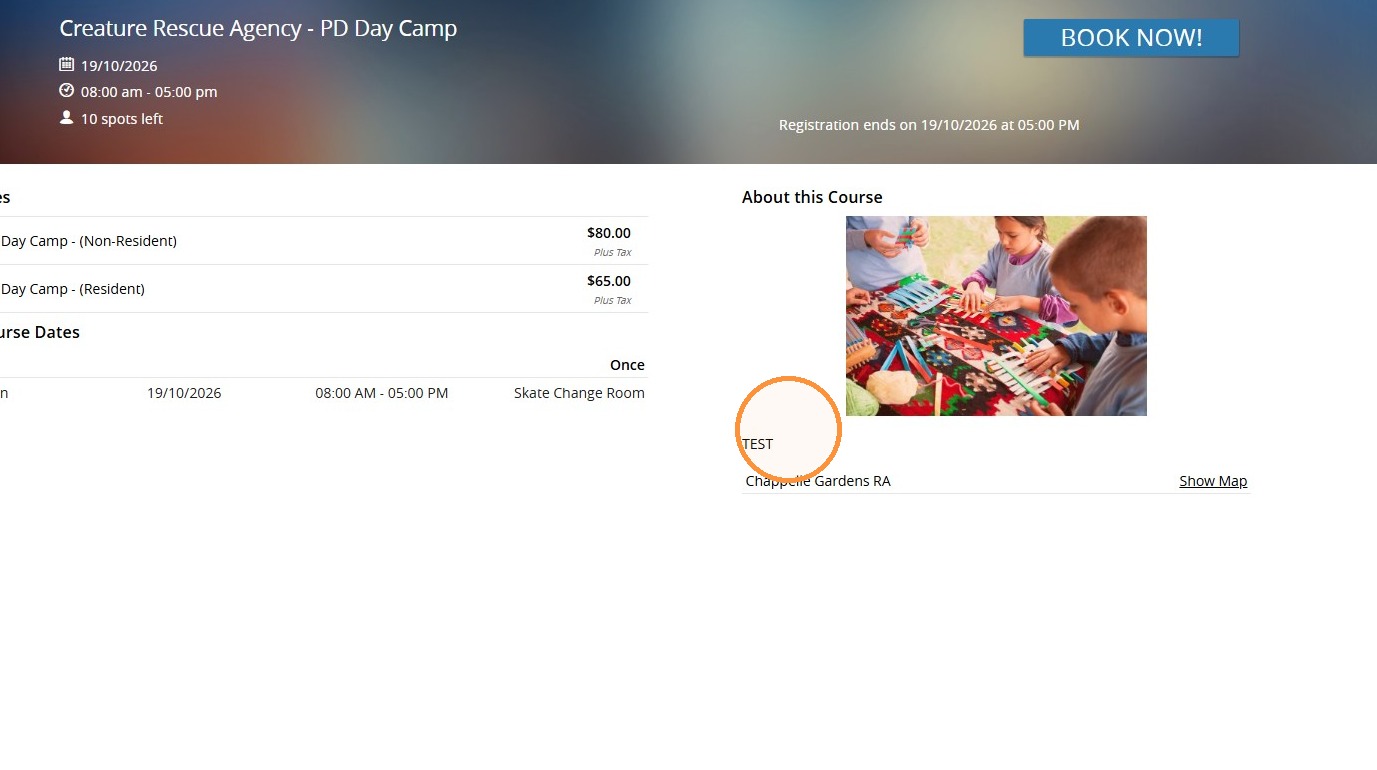
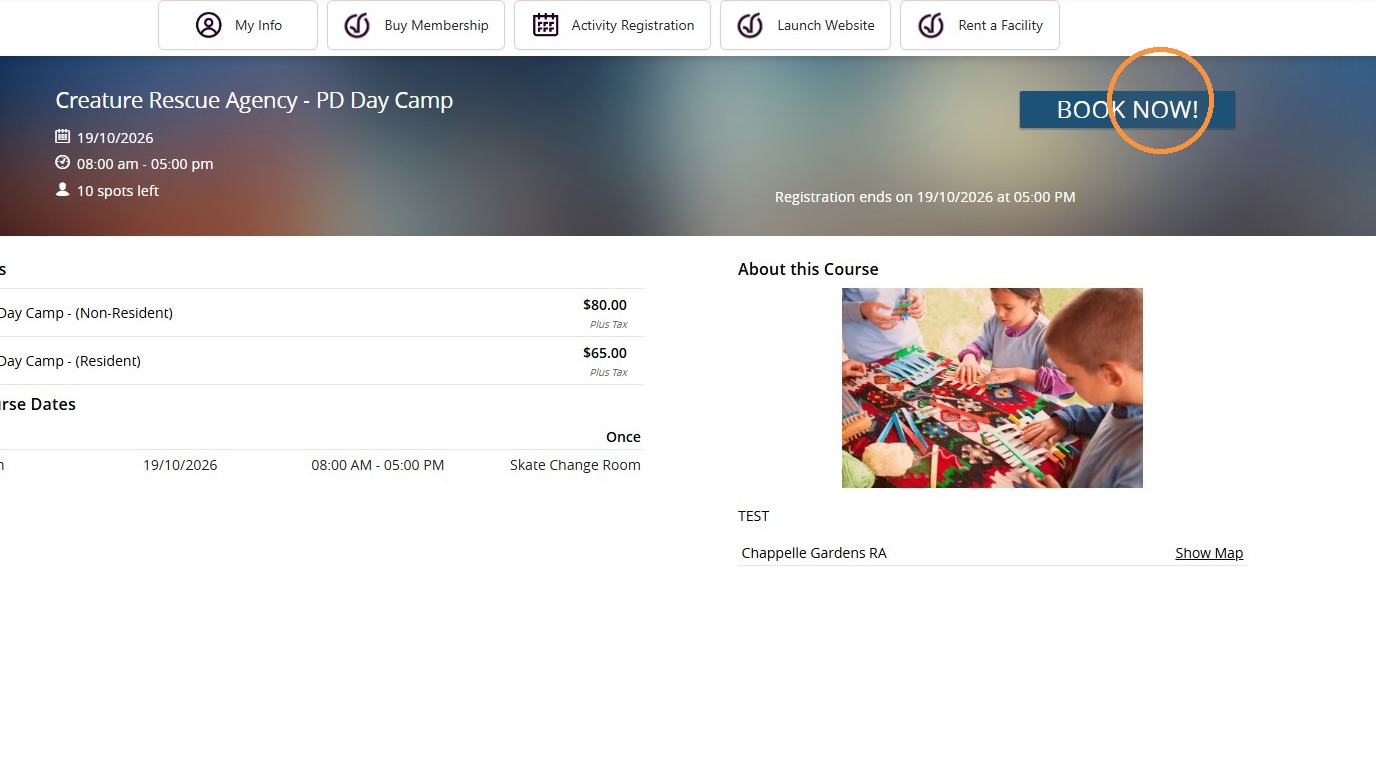
5. When ready to register. Click book now.
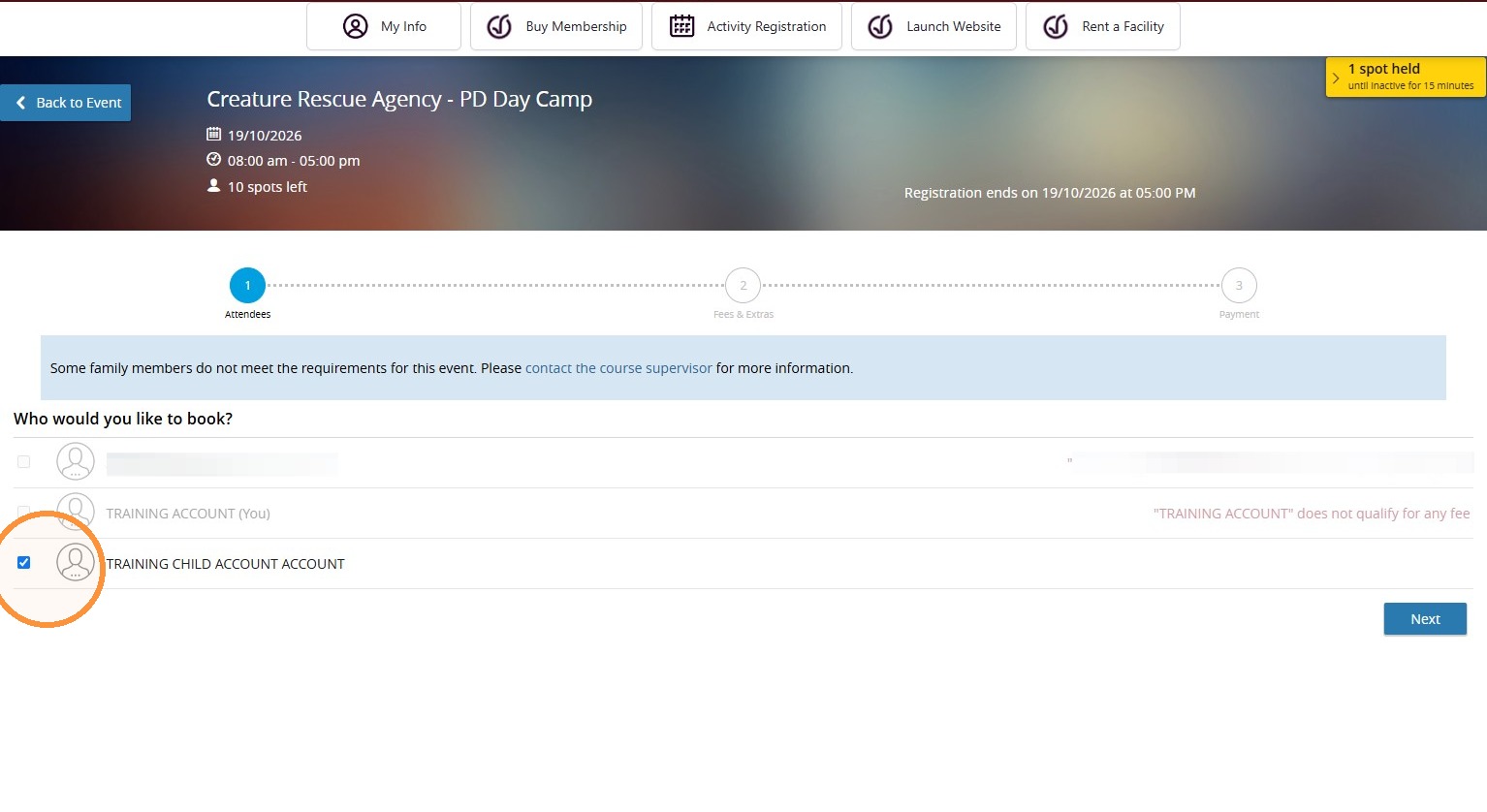
6. Ensure the correct individual(s) are checked to proceed registering.
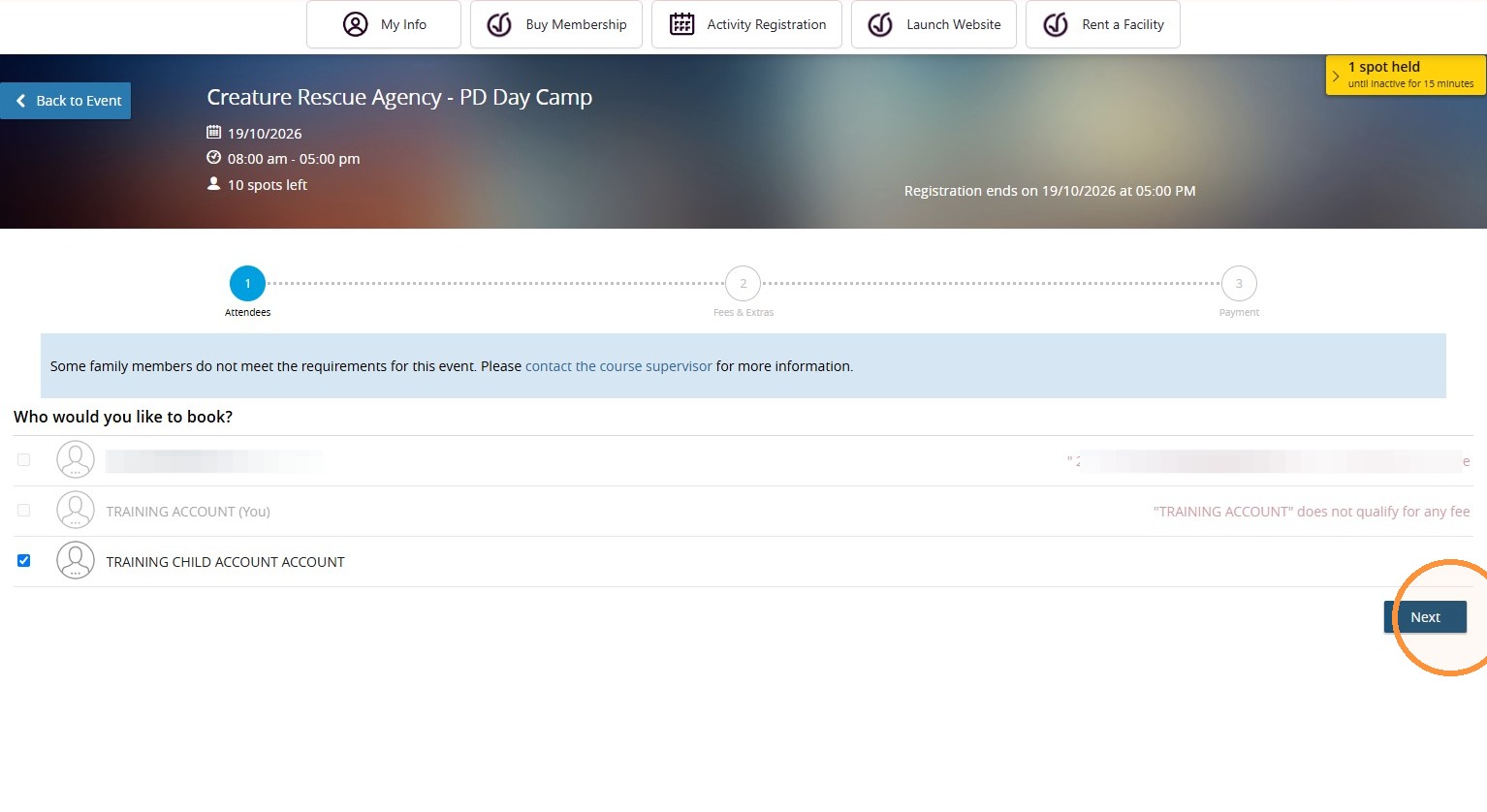
7. Click “Next”
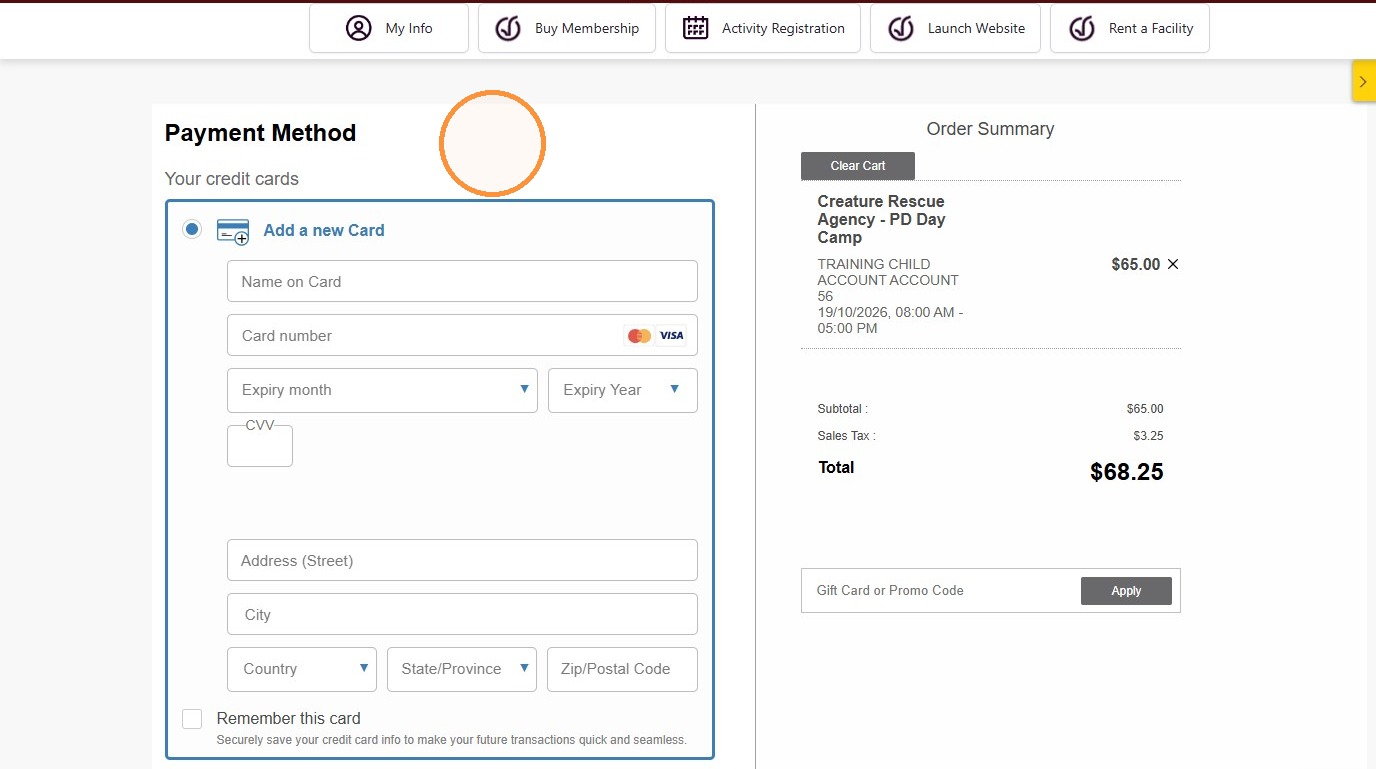
8. Enter your payment method details
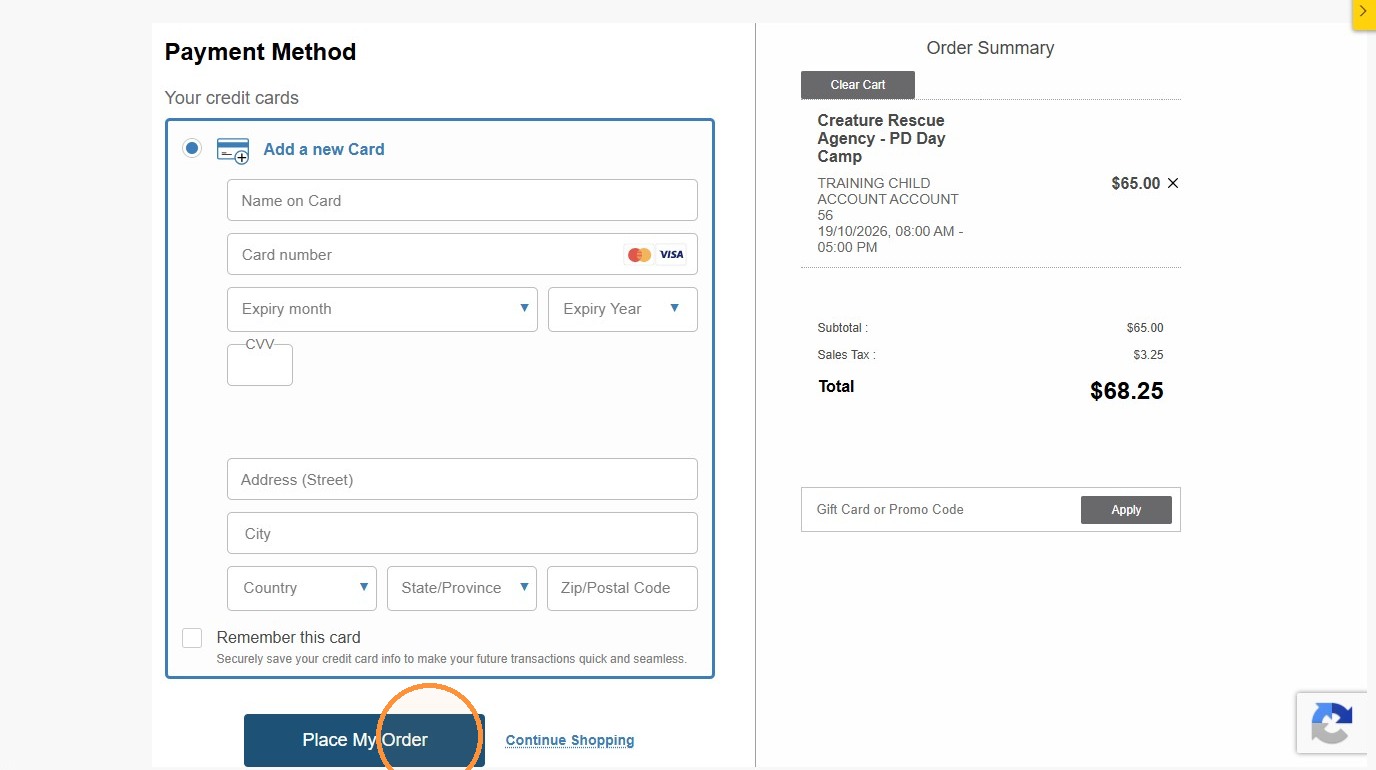
9. Click “Place My Order”
How to Pay Invoices Online
How To Search, and Pay Invoices
Learn how to efficiently settle outstanding balances for invoices.This guide walks you through selecting specific invoices and securely processing your payment using saved or new card information.
1. Navigate to your account main page
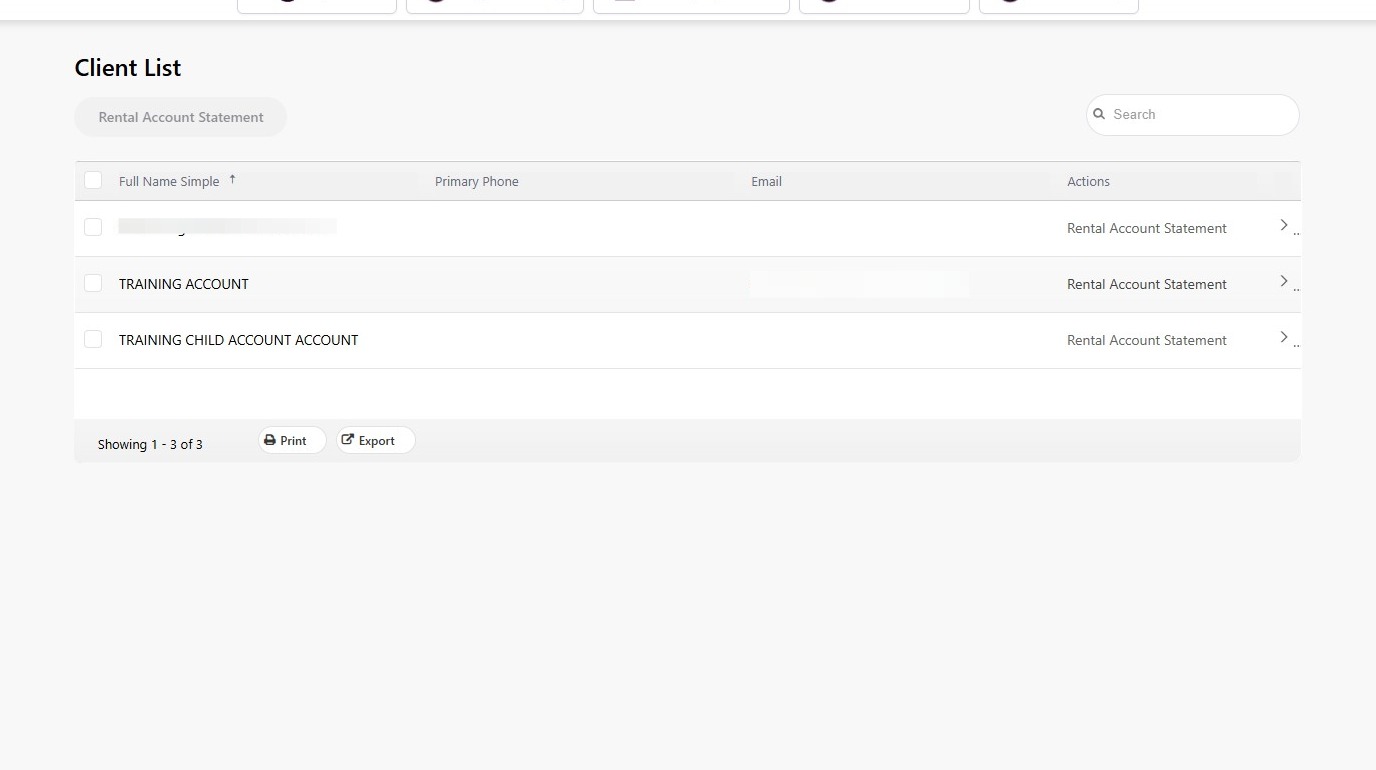
Select Account
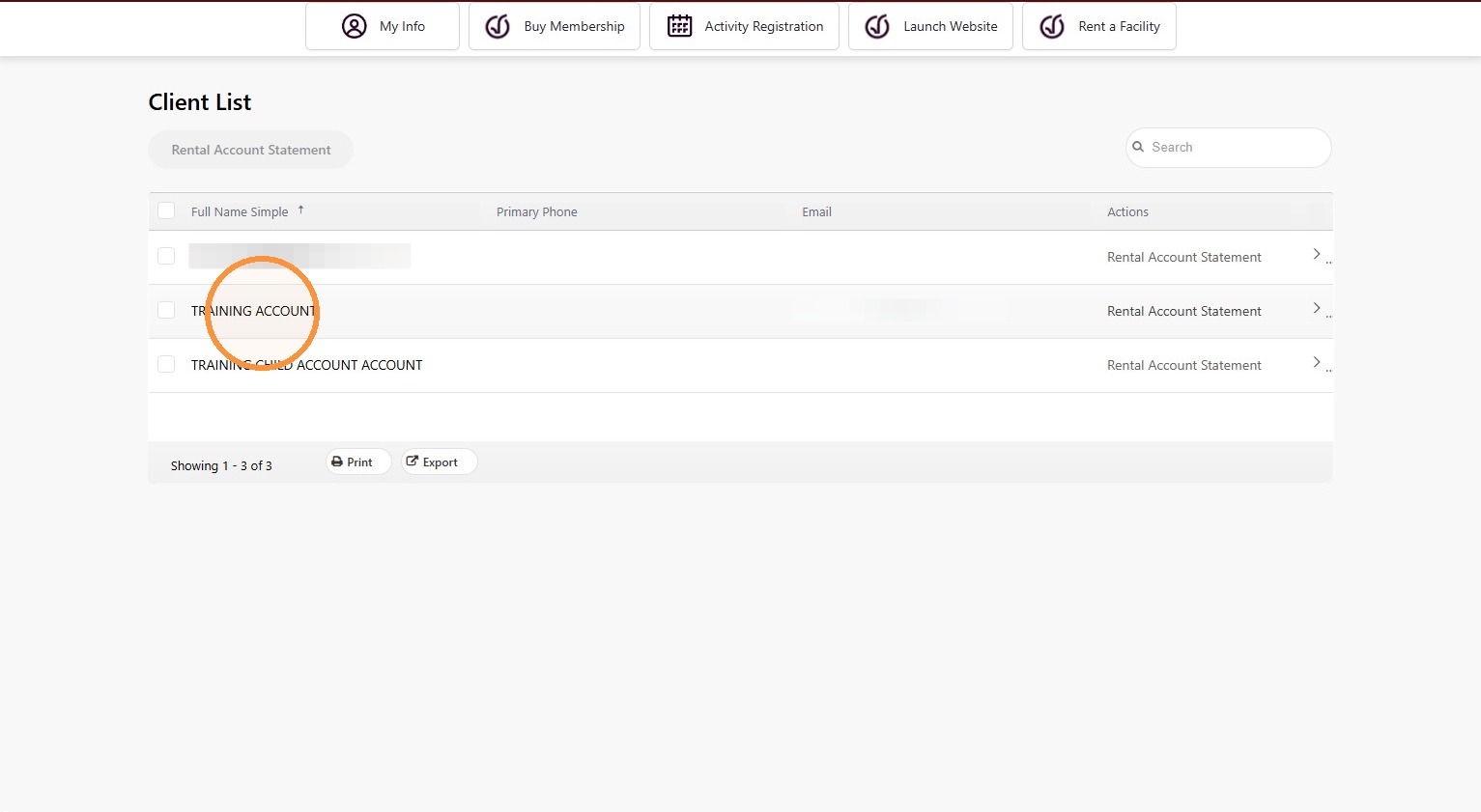
2. Click into your account name
3. Click “Invoices”
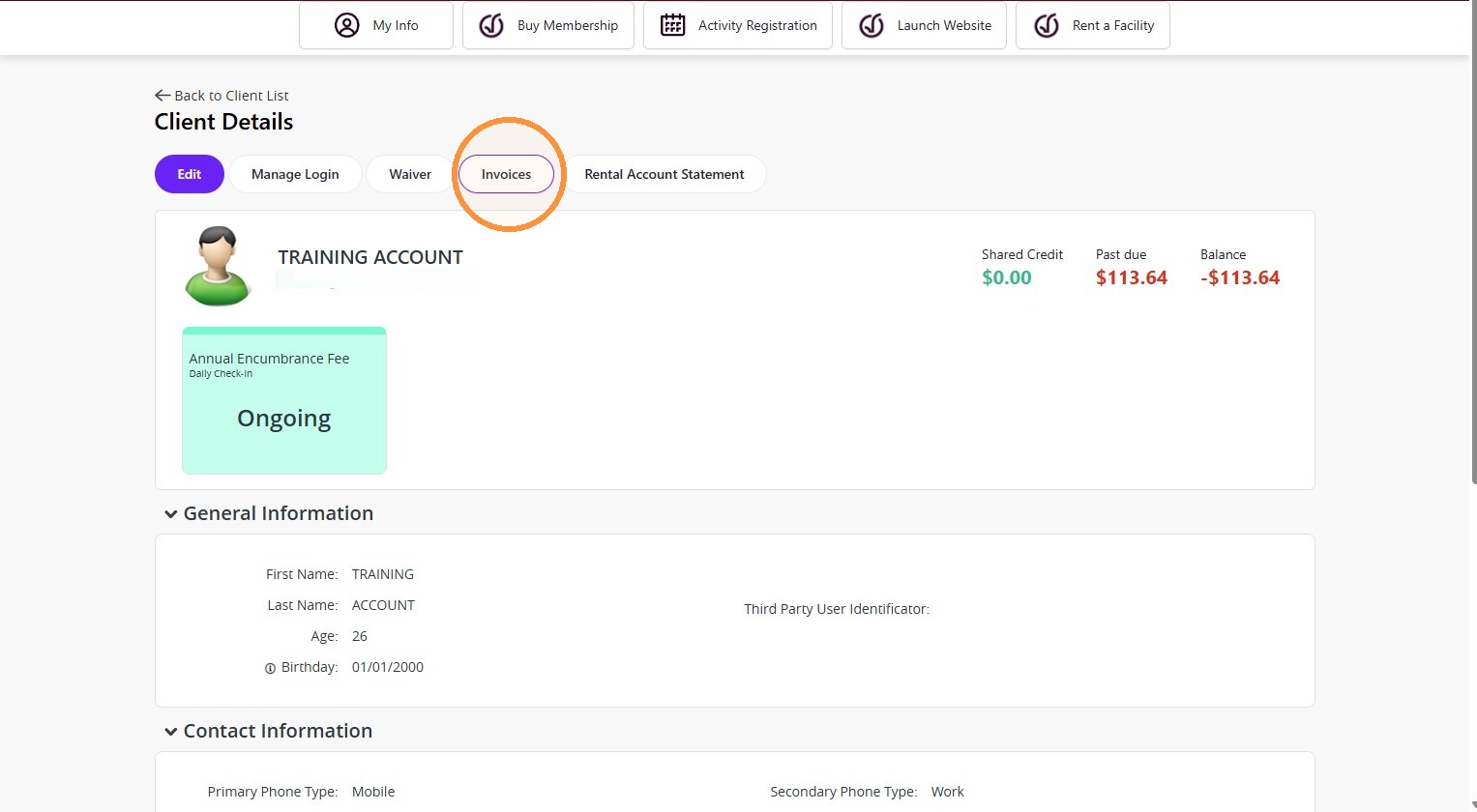
Select Invoices
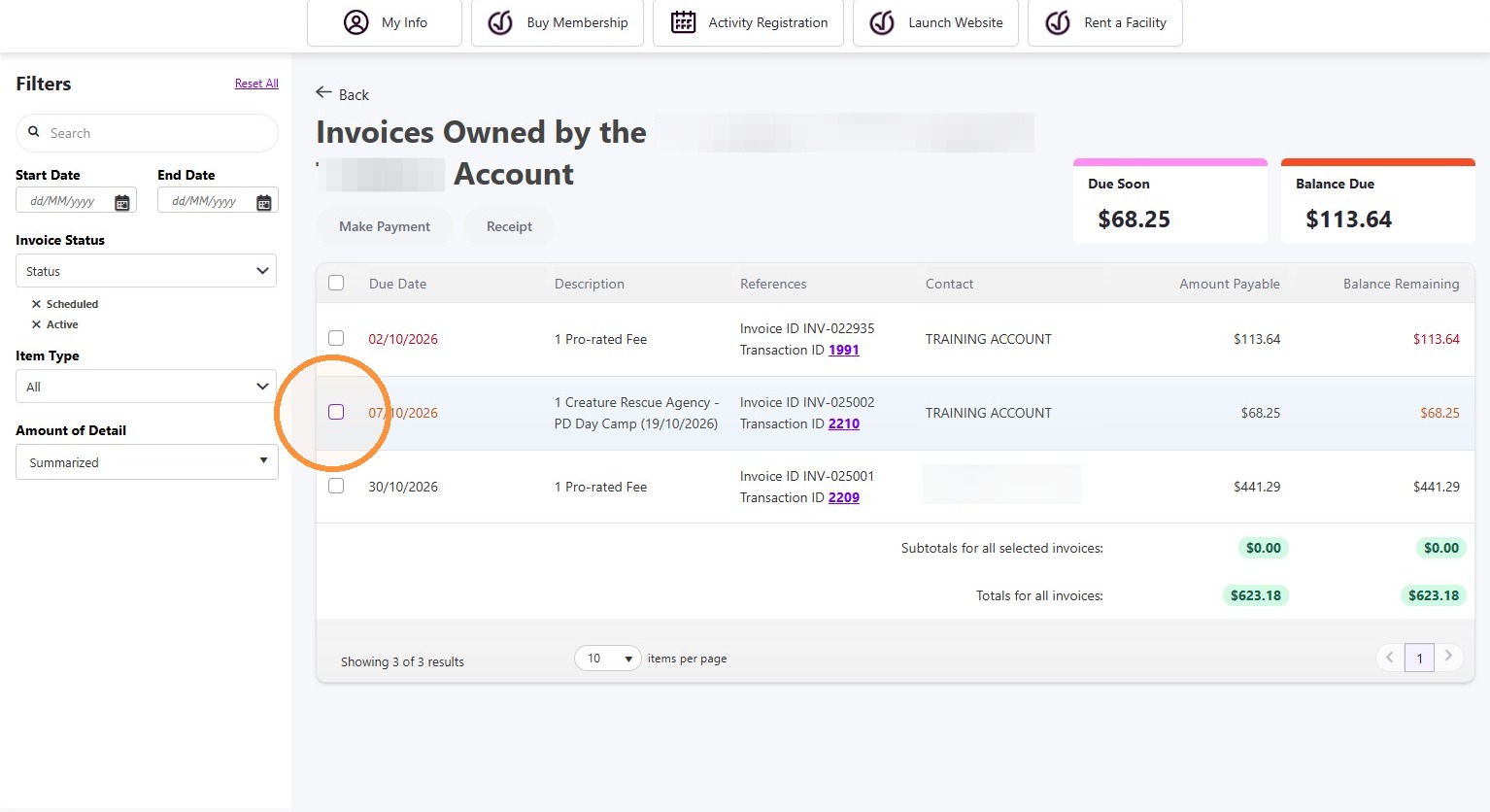
4. Select the checkbox for the invoices you would like to pay.
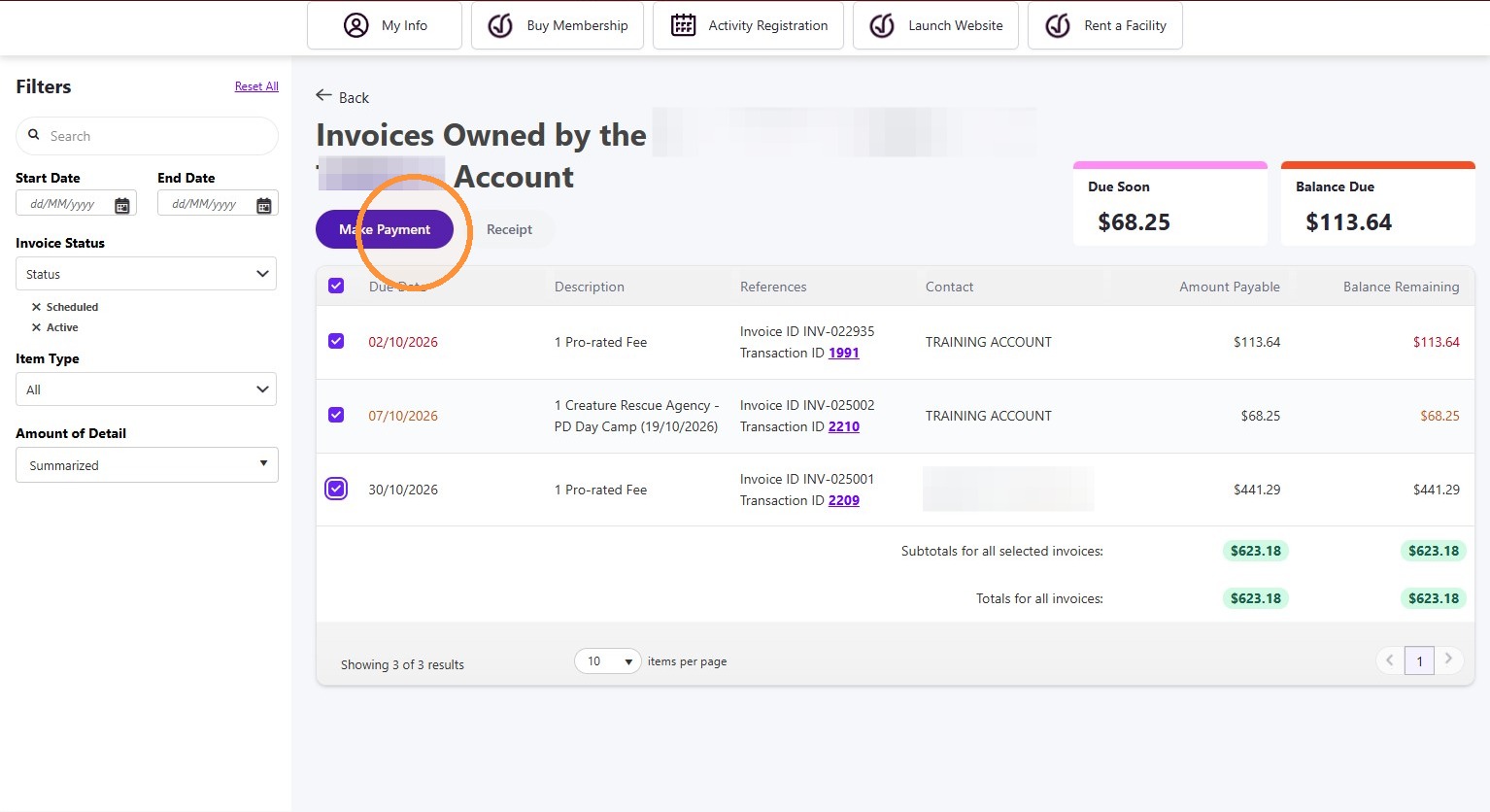
5. Click “Make Payment”
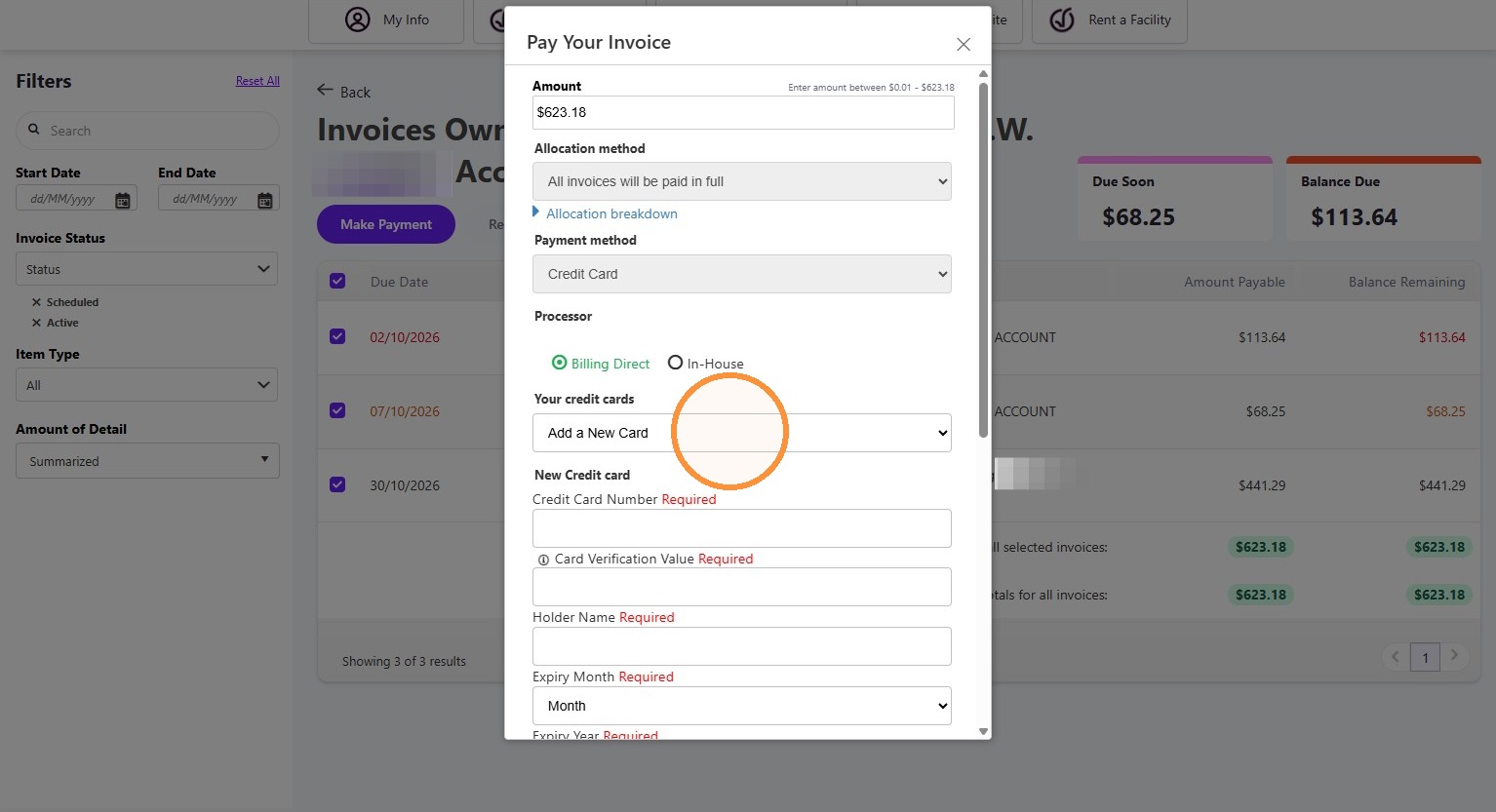
Enter Payment Details
6. Open the Your credit cards dropdown.
Verify and Submit
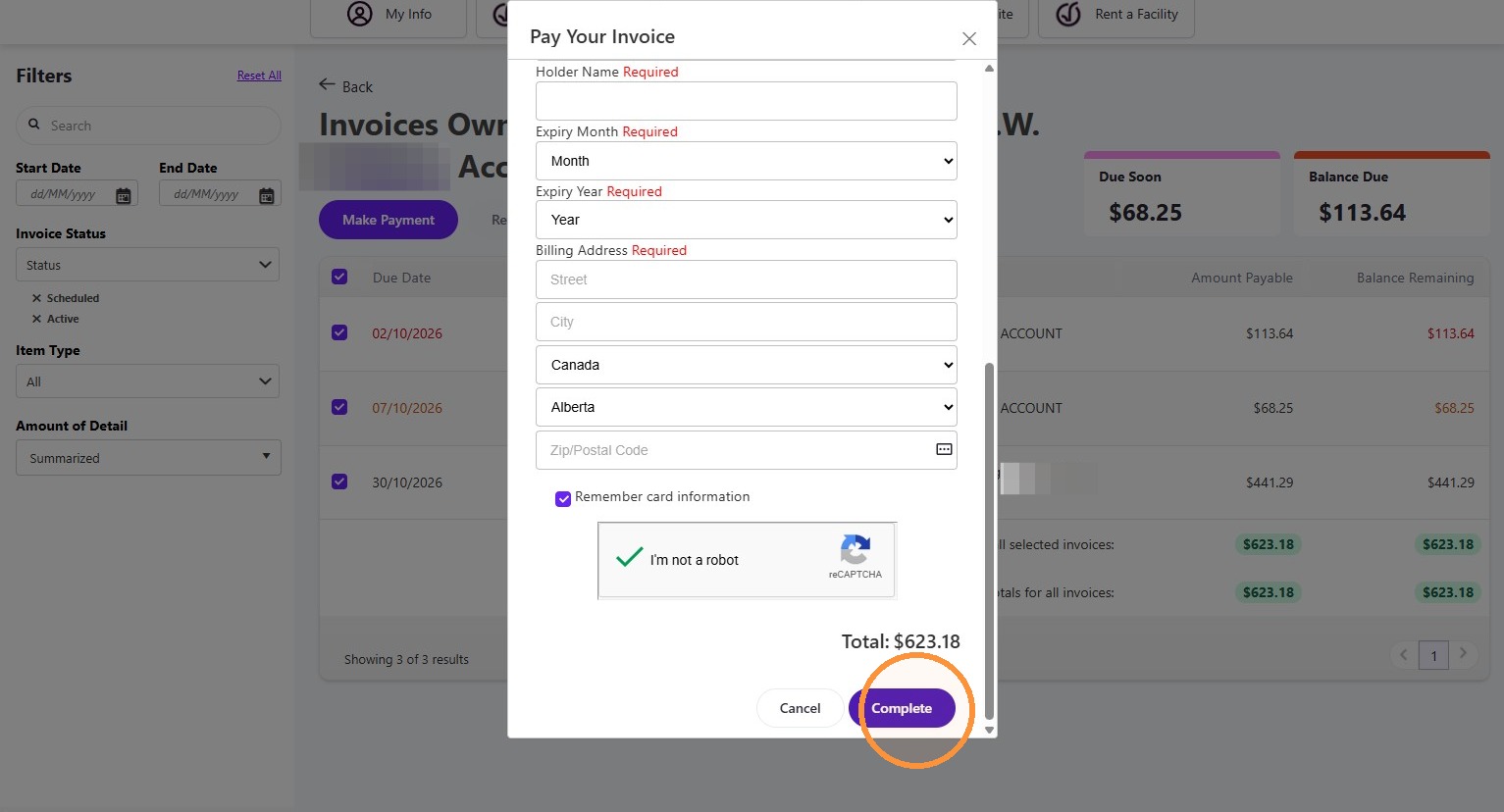
7. Click “Remember card information” if you would like to hold your card on your account.
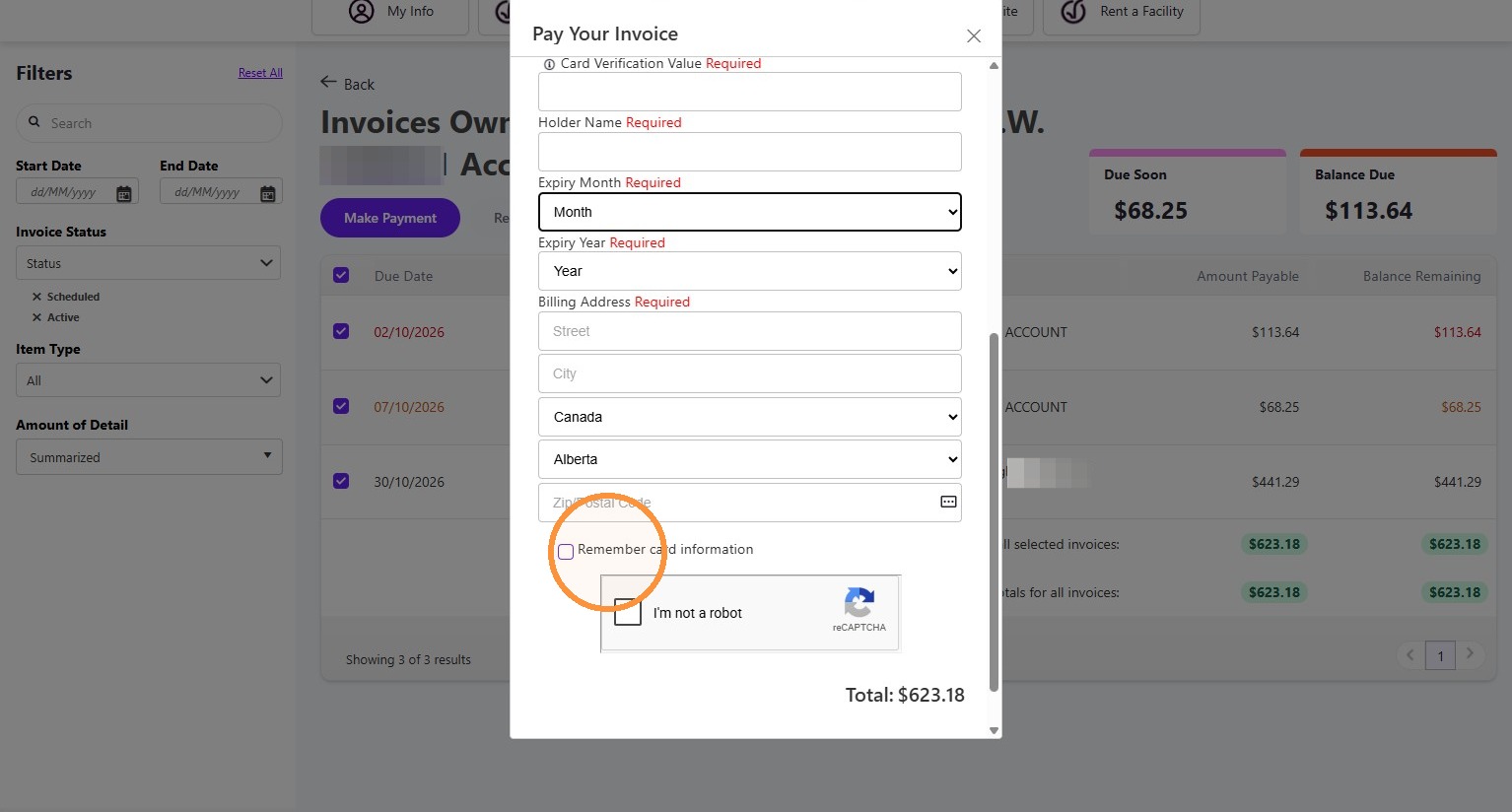
8. Click “Complete”